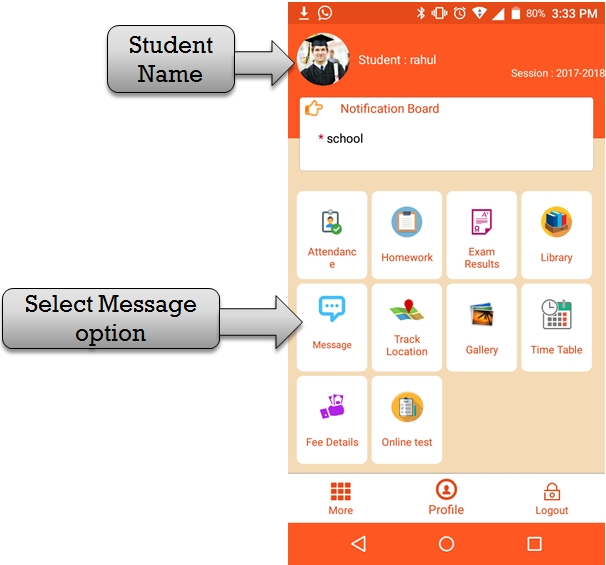
step:1st – You have to select student message option then display send SMS and messenger option .
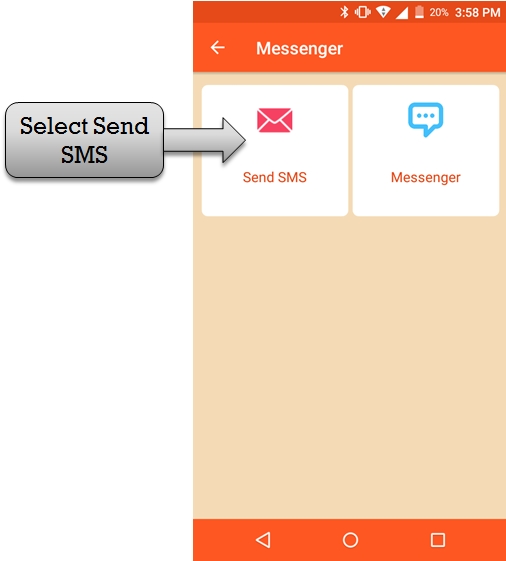
step:2nd -Select send SMS option then SMS send to parent ,staff and student.
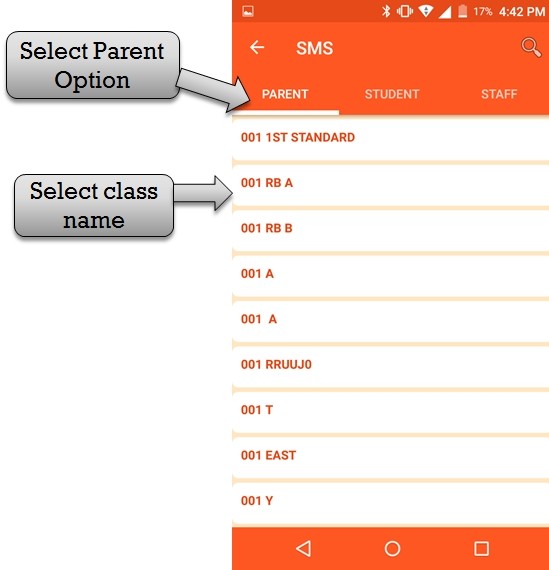
step:3rd -You have to select parent option then showing class name list and select class name then display SMS sending view .
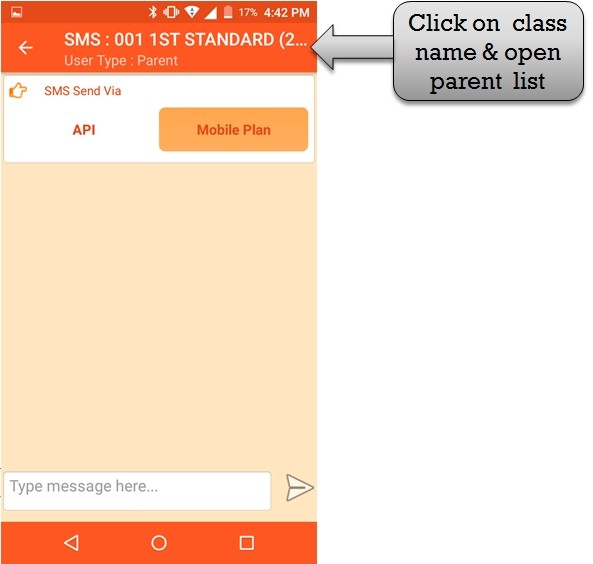
step:4th – Please click class name then showing all parent list and parent status .
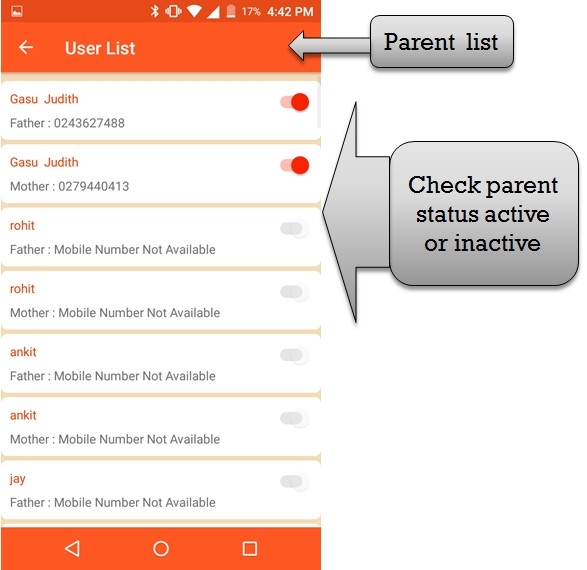
step:5th – Listing all parent name and check parent status active or inactive . you have to send sms for parent please select name.
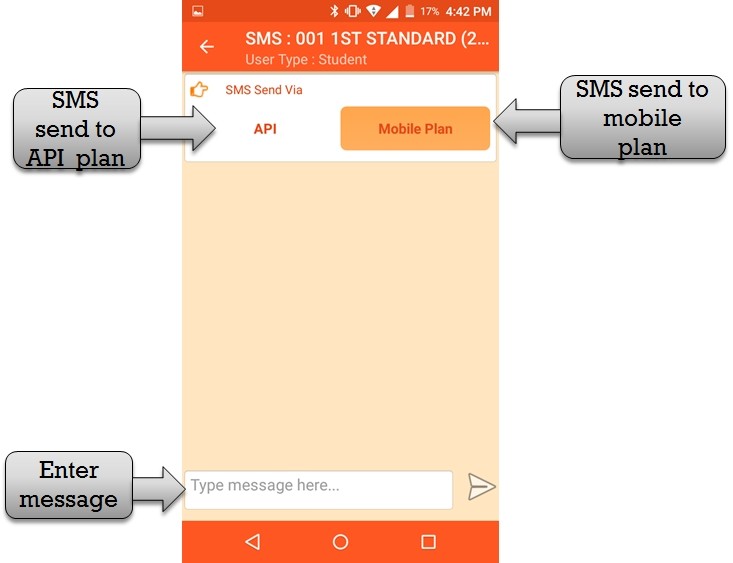
step:6th – Select SMS plan API Plan and Mobile then enter your message and click enter button message send successfully .
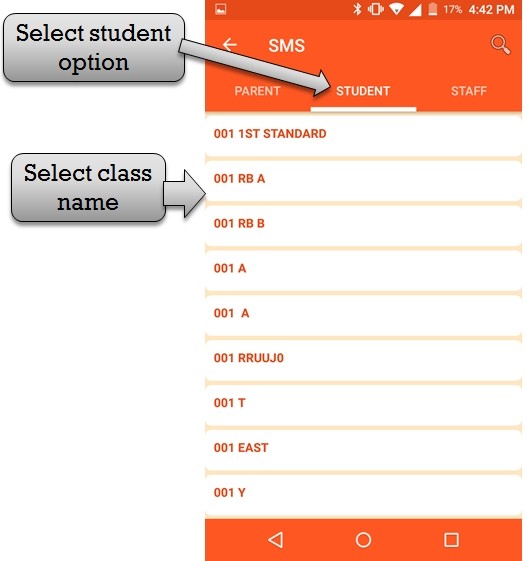
step:7th – You have to select student option then showing class name list and select class name then display SMS sending view .
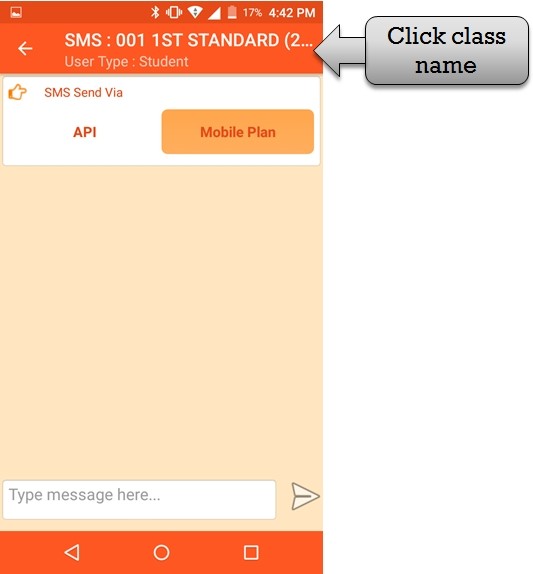
step:8th – Please click class name then showing all student list and student status .
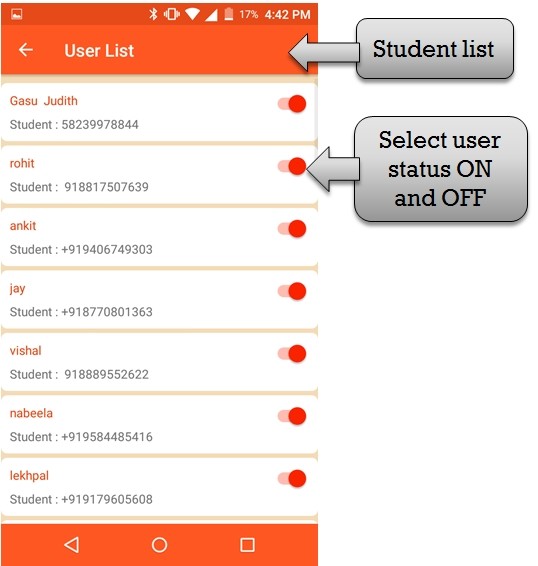
step:9th – Listing all student name and check student status active or inactive .you have to send SMS for student status is active then send SMS .
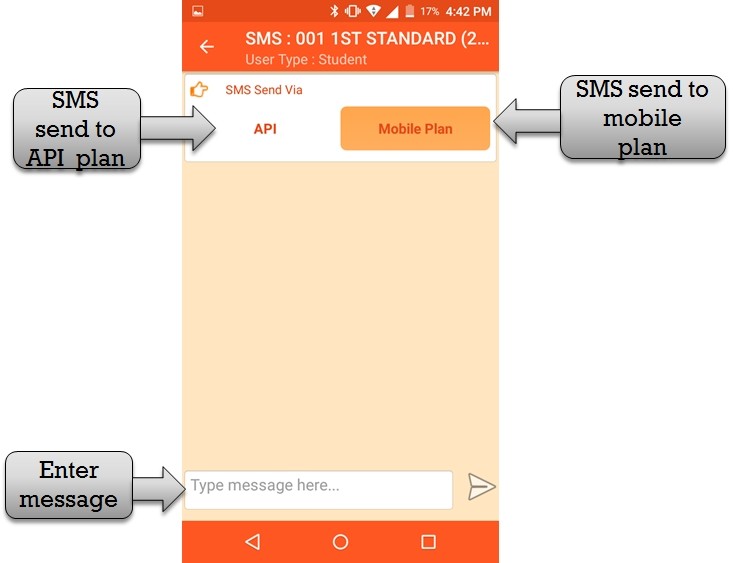
step:10th – Select SMS plan API Plan and Mobile then enter your message and click enter button message send successfully .
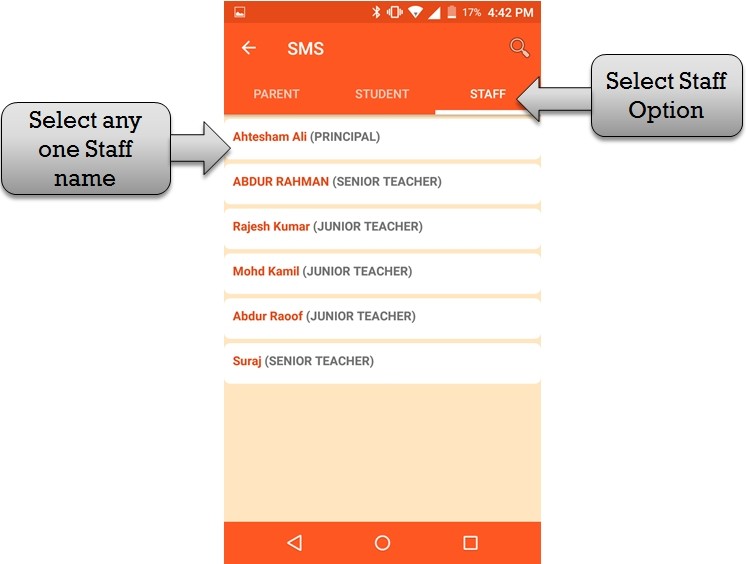
step:11th – You have to select Staff option then showing all Staff list and select any one Staff name then display SMS sending view .
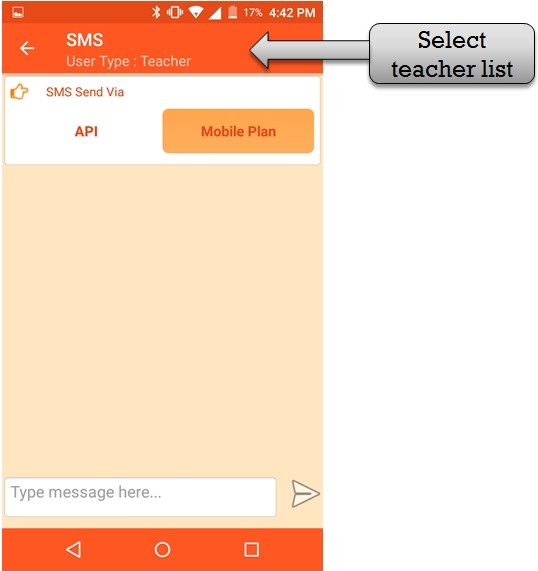
step:12th – Please click class name then showing all parent list and parent status .
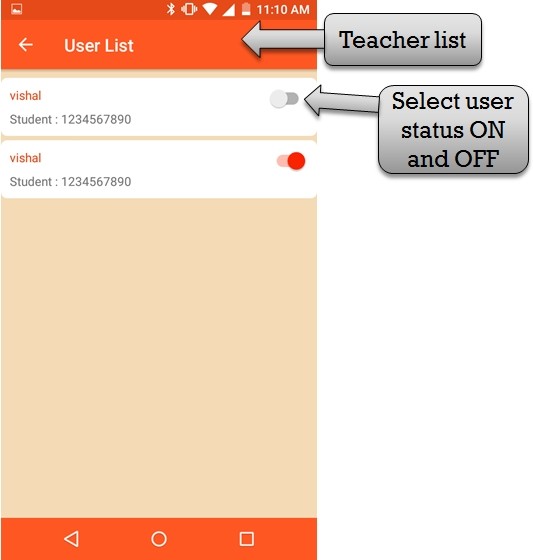
step:13th -Listing all parent name and check parent status active or inactive . you have to send SMS for Parent status is active then send SMS .
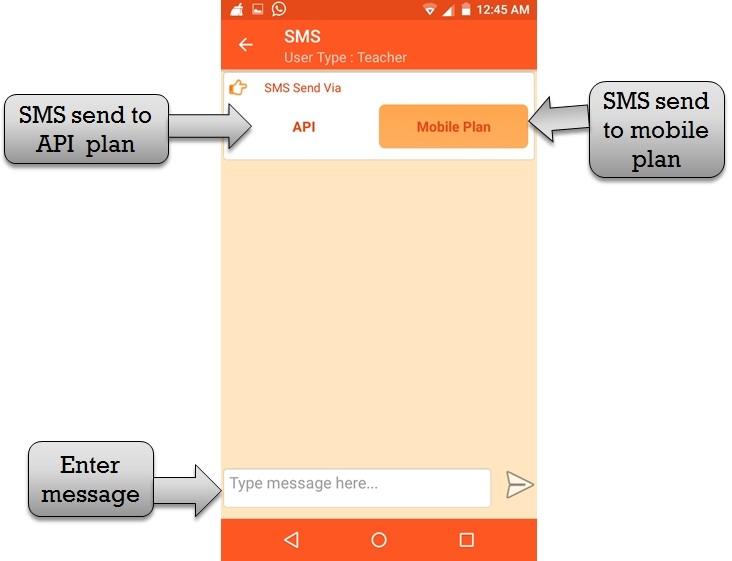
step:14th – Select SMS plan API Plan and Mobile then enter your message and click enter button message send successfully .
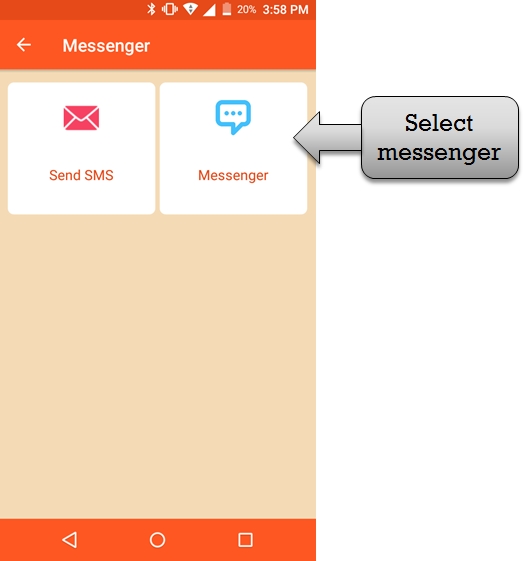
step:15th – Select Messenger Option then Communication with student ,teacher ,parent and class .
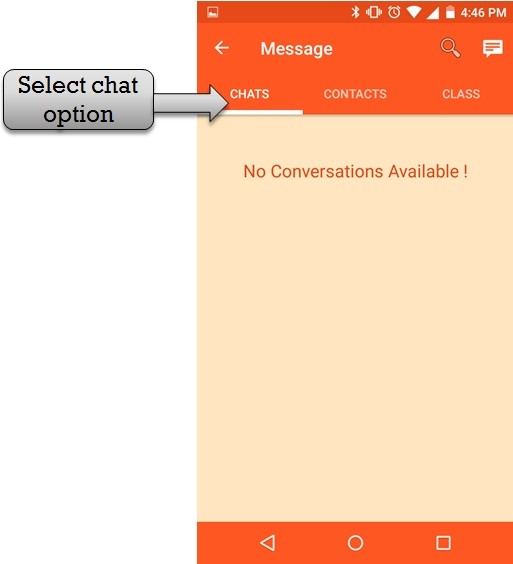
step:16th – Select chat option and any user is online then showing in chats list other wise no conversations available message show .
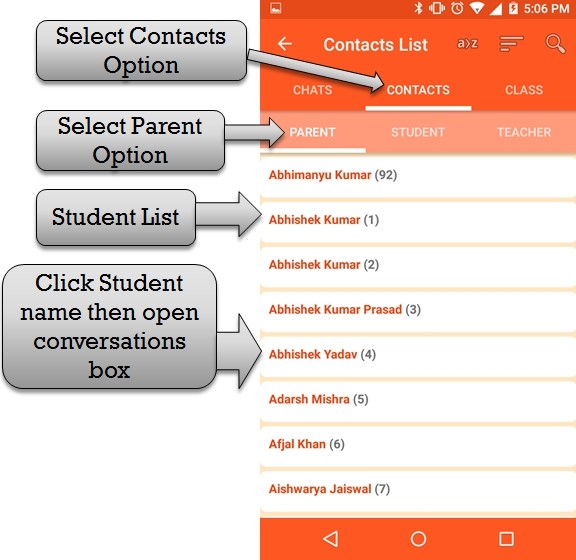
step:17th – Select contacts Option then show parent, student and teacher option. select parent option then listing all student name .please click any one student name then open parent conversations box .
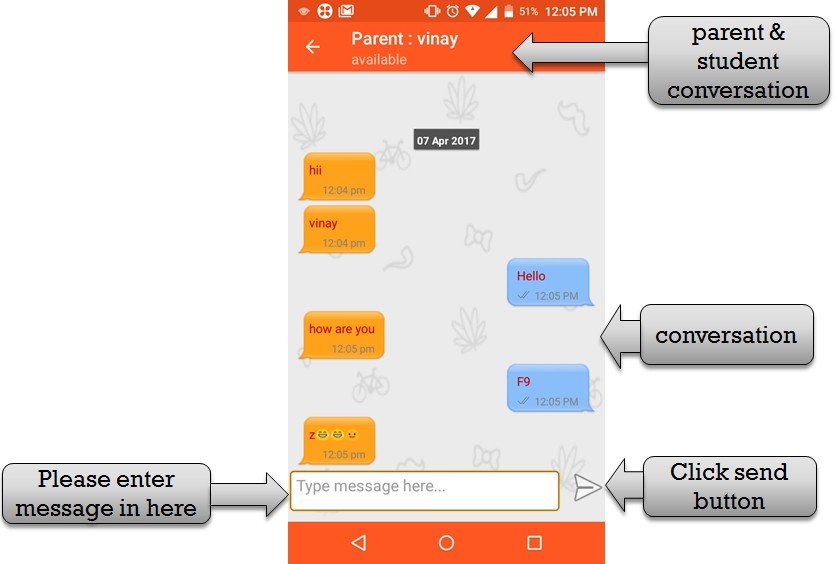
step:18th – Parent and Student message conversations box open .please enter your message in message box and click send button parent and student conversations show .
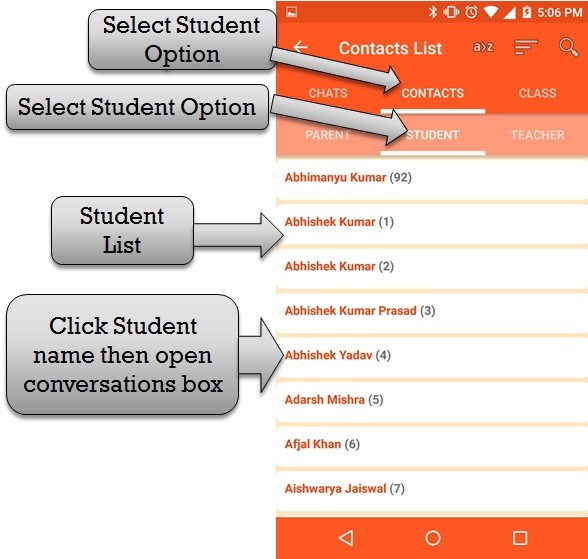
step:19th -ZeroERP School management App Software – Select Student option then listing all student name. please click any one student name then open student conversations box .
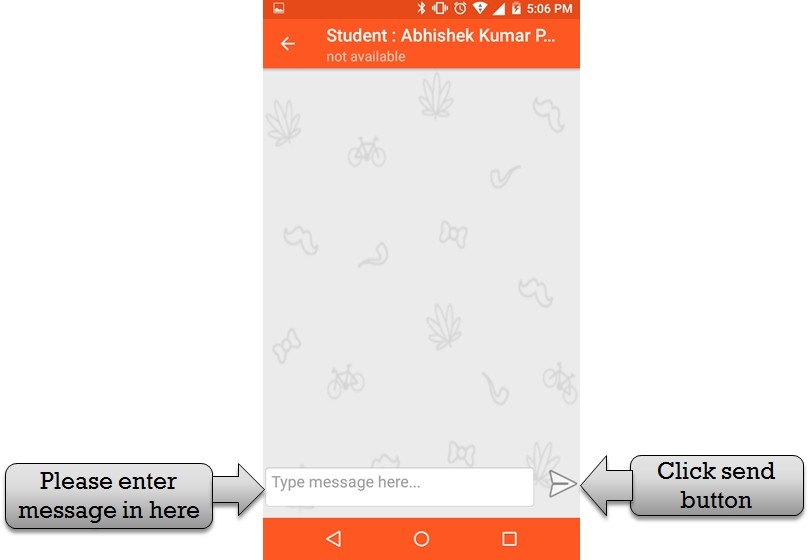
step:20th – Student and Student message conversations box open .please enter your message in message box and click send button Student and student conversations show .
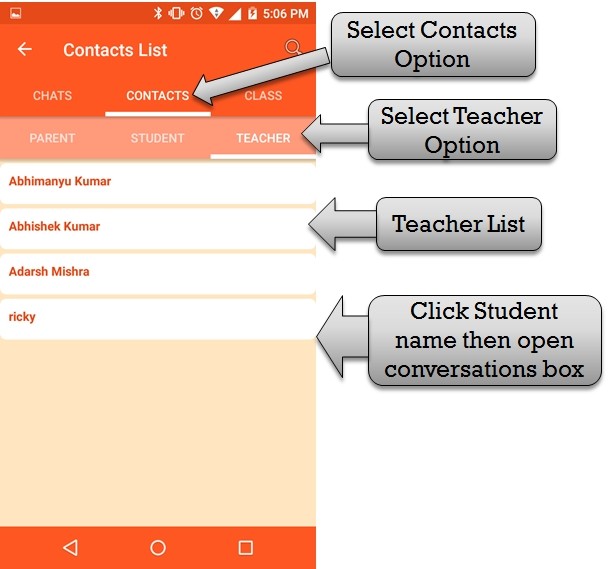
step:21th – Select teacher option then listing all student name. please click any one student name then open teacher conversations box .
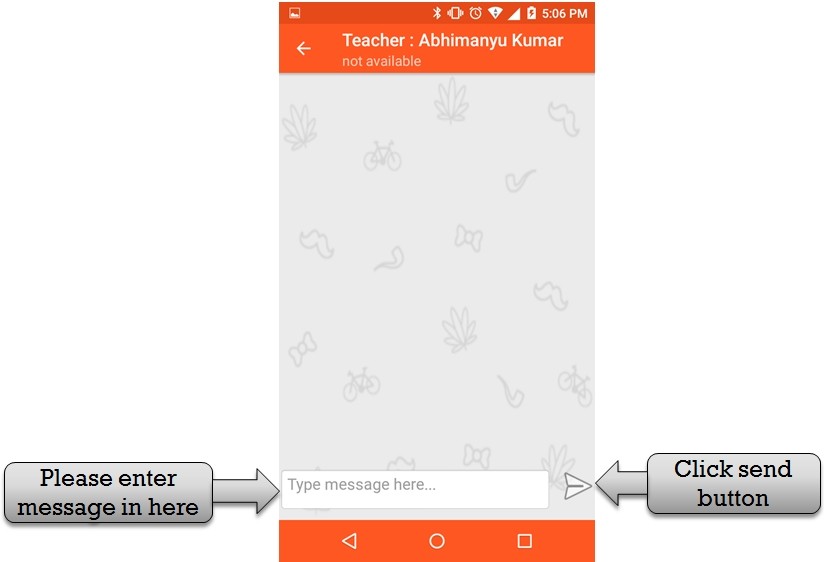
step:22th – Teacher and Student message conversations box open .please enter your message in message box and click send button teacher and student conversations show .
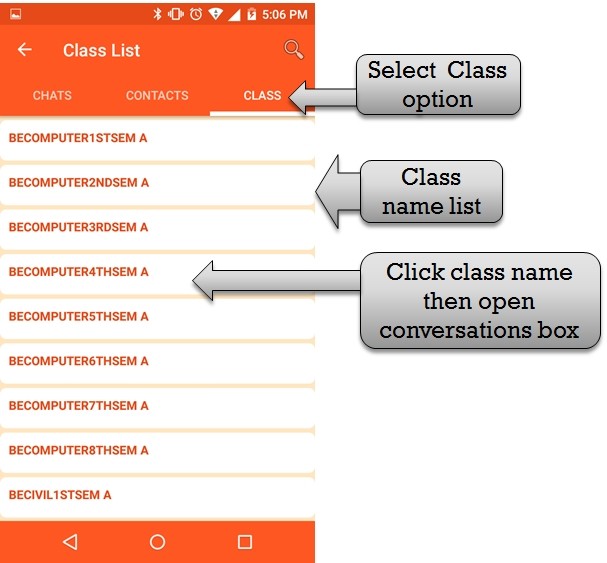
step:23th – Select class option then listing all class name. please click any one class name then open class conversations box .
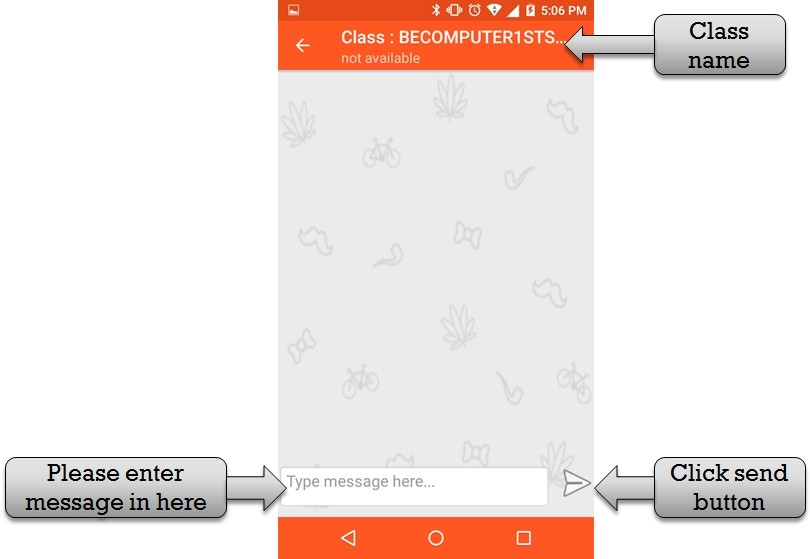
step:24th – Class conversations box open and please enter your message in message box and click send button message send successfully.

✕